![1f613ec134bc17877e144c3a22fc3808.png]](https://help.thirst.io/hs-fs/hubfs/1f613ec134bc17877e144c3a22fc3808.png?height=40&name=1f613ec134bc17877e144c3a22fc3808.png)
Overview
Quizzes in Thirst let you create engaging activities to test knowledge, reinforce learning, and provide measurable outcomes for your learners. This guide walks you through how to create a quiz, add different types of questions, and configure the completion and scoring settings.
Create a Quiz
To create a quiz:
-
Select Quiz from the Create Content modal.
-
Enter a Title and click Create Draft.
-
Add a Description (optional) to explain the purpose of the quiz.
-
(Optional) Upload an image to make the quiz more engaging.
-
Begin adding questions and configuring settings.
Adding Questions
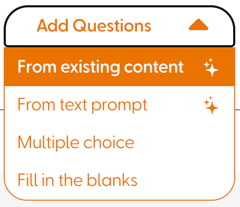
Once your draft is created, you can add questions using several different methods:
From Existing Content (AI)
Use AI to generate quiz questions based on existing Thirst content. You'll be prompted to select the content you’d like to base the quiz on, and let Thirst AI suggest questions.
From Text Prompt (AI)
With this method, you can provide a text prompt or topic, and AI will generate suggested questions for you.
Note: AI generated questions will only be MC questions. You can review and edit AI-generated questions before publishing.
Multiple Choice
Selecting Multiple choice will allow you to manually create a multiple choice questions where one or more answers can be correct. A maximum of four choices can be added to the questions, and the correct answer is identified by clicking the small circle to the right of the answer choice to apply a tick icon (at least one must be selected).
For this question type, learners earn +1 point for correct answers and -1 point for incorrect answers. Scores cannot drop below zero.
An info box will appear the first time you add this question type to explain the scoring rules.
Fill in the Blanks
Selecting Fill in the blanks will allow you to manually create questions where learners must type in missing words.To add blanks to your question text, use […] as a marker for the fill in the blank. e.g. The capital city of England is [London].
Multiple blanks can be added to a question, and each correct blank is worth 1 point; incorrect answers score 0.
Note: Answers are case-insensitive. i.e. Leadership & leadership are the same, and both correct.
Similar to Multiple choice questions, an info box will appear the first time you add this question type to explain the scoring and use.
Scoring
Each question added displays a Score: X label, showing how many marks it’s worth and will update as the question is created.
The total scores are hidden from learners until after they submit the quiz.
Managing Questions
To deleted any unwanted questions you can use the bin icon.
Configuring Quiz Settings

On the right-hand side of the page, you will see the settings panel, which lets you control how the quiz behaves for learners. Here you will find the following:
-
Completion Settings – Choose when the quiz is marked complete:
-
When submitted
-
When pass score is achieved
-
When viewed
-
-
Pass Score – Define the score learners must reach to pass. The maximum equals the total available marks.
-
Attempts – Limit the number of attempts a learner can take.
-
Certificates – Choose whether a certificate is awarded upon completion.
-
Question Order – Enable the setting requiring learners to complete questions in order.
Editing Quizzes
To edit quiz questions once the quiz has been published, select the three dots in the top-right corner of the content and click Edit Questions.
Note: Editing questions will reset all existing completions, attempts, and certificates for this quiz.
To edit quiz settings, select Edit Content from the same menu.
Learner Experience
Once published, learners can access the quiz and answer the questions you have added. When they submit their responses, their score is revealed along with their pass or fail status if a pass score has been set. Depending on your configuration, completion may be marked as soon as they submit, once they pass, or simply when they have viewed the activity.
Getting the Most Out of Quizzes
-
Use a mix of question types to keep quizzes engaging.
-
Keep pass scores realistic to encourage progress without discouraging learners.
-
Pair quizzes with certificates to reward learners for achievement.